TUTORIAL Workflow
Note Repeat and 16 Levels on an MPC: the complete guide
People talk about these two like they're one feature because they live one button apart and both involve holding a pad down. They're not related. Note Repeat fires a pad over and over on a grid. 16 Levels spreads one fixed parameter across all sixteen pads so each one plays differently. Here is how to set up both, how to actually use them together in a session, and where Akai's own manual is inconsistent about what 16 Levels can even do.
The short version
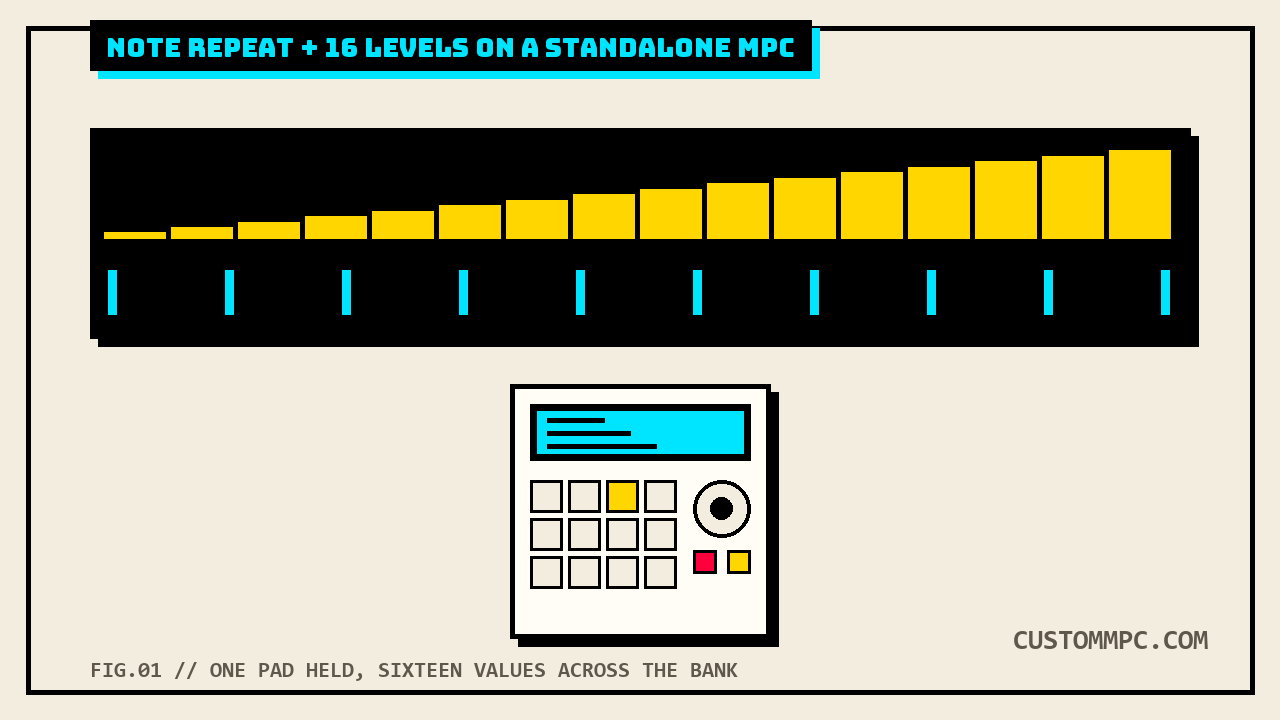
Note Repeat and 16 Levels sit one button apart on every current standalone MPC, One, Live, Live II, Key 37, Key 61, and X, and Akai's own chapter list for the current line adds MPC X Special Edition, One+, One G2, and Key 37 G2 to that same button layout. Press and hold Note Repeat, then press a pad, and that pad's sample fires over and over on a grid tied to your tempo and Timing Correct settings. Press 16 Level and the last pad you hit gets temporarily copied across all sixteen pads, all playing the same note, but with one selectable parameter, velocity, tune, filter, whatever, fixed at a different value on each pad, climbing from Pad 1 to Pad 16, no matter how hard you actually press them. That last part is the thing people get backwards: 16 Levels doesn't make your pads more expressive to how hard you hit them, it does the opposite, it locks in a fixed value per pad and ignores your actual playing force for that parameter.
WORKING PRODUCER'S NOTE: the two features do combine well, just not by being "the same thing." Note Repeat gives you a mechanical, tempo-locked roll. 16 Levels gives you a spread of sixteen fixed variations to roll across. Put a decaying hi-hat on 16 Levels with Type set to Decay, hold Note Repeat across the bank, and you get a roll that opens up as it plays, without touching a knob mid-take. That's the actual reason to learn both at once, not because they're related features, but because they're a good pair.
Two features, not one
It's an easy mix-up because both features live on adjacent hardware buttons and both are demoed the same way in every YouTube video, hold a pad, hear something repeat or change. But they solve different problems and neither one requires the other.
Note Repeat is a performance trigger. It exists to turn a single pad press into a stream of repeated hits, useful for rolls, stutters, and hi-hat patterns you'd rather play live than program by hand. It has nothing to do with which parameter is playing, it just retriggers the pad you're already holding.
16 Levels is a mapping tool. It exists to put a range of one parameter's values across the physical pad grid so you can reach any of sixteen variations of a sound by hitting a different pad, or by holding 16 Level and pressing through them to set one up. Nothing about it repeats anything by itself.
Where they actually connect is that Note Repeat can hold down a pad that 16 Levels has already set to a specific fixed value, which is exactly the workflow this article gets to below. But you can use either one with the other completely off. Most players use 16 Levels for setup, tuning a pad's decay or filter cutoff by hand, pad by pad, then turn it off and Note Repeat has nothing to do with any of that.
Setting up and using Note Repeat
The core move is one button and one pad. Press and hold Note Repeat, then press the pad you want to repeat. It fires on a grid based on your project's current tempo and Timing Correct settings, and it stops the moment you release the button. If you need both hands free, hold Shift and press Note Repeat to latch it. Latched, the feature stays active without you holding the button down, so you can press and release pads freely and each one repeats while held, or continuously depending on your Timing Correct settings. Press Note Repeat once more to unlatch it.
The rate isn't a field on the Note Repeat button itself, it's borrowed from Timing Correct (TC), the same quantize engine that snaps recorded notes to a grid. Open the TC window (tap the TC field at the top of the screen in Main Mode or List Edit Mode, or press the dedicated TC / On/Off button on MPC Live II, One, Key 61, or Key 37) and set the Time Division field, that's the note value, 1/4 down to fine subdivisions with triplet (T) variants, that Note Repeat's grid follows. Want a shuffled roll instead of a straight one? Same window, the Swing field runs from 50% to 75% and applies to anything quantized against that grid, Note Repeat included.
There's a second, more powerful way to get note repeat behavior, buried behind the same button. Press and hold Note Repeat, then tap Arp at the bottom right of the screen to open the Arpeggiator window, and set the Action field to Note Repeat instead of Arp. This version requires a Plugin, Keygroup, MIDI, or CV track, not a drum track, and it comes with its own Time Division, Note Length, Velocity, and Swing fields that are entirely separate from the global Timing Correct settings the hardware button uses. That's genuinely useful if you want a Note Repeat rate that's independent of the project's main TC grid, say, everything else quantized to 1/16 but a synth stab arpeggiated at 1/32T, but it's worth knowing Akai's own manual gives Arp, Rhythm, and Pattern each their own dedicated parameter section (Arp Pattern, Octaves, Variation for Arp; Rhythm Pattern for Rhythm; Pattern field for Pattern) and gives Note Repeat none of its own. Set Action to Note Repeat and you're working with only the shared Setup, Settings, Probability, and Modifiers sections, nothing unique to that mode.
| Method | Track type | Rate controlled by | Extra controls |
|---|---|---|---|
| Note Repeat / Latch button | Any, including drum tracks | Global Timing Correct (Time Division, Swing) | None, it's a straight retrigger |
| Arpeggiator, Action = Note Repeat | Plugin, Keygroup, MIDI, or CV only | Its own Time Division, independent of global TC | Note Length, Velocity, Swing, Probability, modifier routings |
Setting up and using 16 Levels
Press the 16 Level button to activate it. Whatever pad you hit last gets temporarily copied across the full bank, all sixteen pads now trigger the same note, and the 16 Levels screen opens with a Type selector: Velocity, Tune, Filter, Layer, Slice, Articulation, Attack, Decay, Probability, or Ratchet. Pick a different source pad without leaving the screen four ways: hold 16 Level and press the pad, uncheck the 16 Levels box, press the pad, then recheck it, tap the Pad field and dial through it, or double-tap the Pad field and pick from the list.
| Type | What spreads across the 16 pads |
|---|---|
| Velocity | Fixed velocity value per pad, from lowest to highest, ignoring how hard you actually hit |
| Tune | Pitch, referenced against an Original Pad you set separately |
| Filter | Filter cutoff, low to high across the bank |
| Layer | Each pad's velocity-layered samples, one layer per pad, by Velocity Start/End |
| Slice | Each pad's Chop Mode slices, in order, starting from Pad 1 |
| Articulation | Pad 1 plays the sample unchanged, Pads 2 through 16 play the first 15 articulations |
| Attack / Decay | Envelope attack or decay time, short to long |
| Probability | Chance the note plays at all, lowest to highest |
| Ratchet | Ratchet subdivision, fewer repeats to more, per pad |
Three of those Types change how the screen behaves, not just what value lands where. Set Type to Tune and an Original Pad field appears, letting you pick which pad's original sample pitch the whole spread is measured against, or you can just hold Shift and press the pad you want as the reference. Set it to Layer and any pad with multiple layered samples plays each layer according to that pad's own Velocity Start and Velocity End settings, meaning 16 Levels is auditioning layers you already built, not creating new ones. Set it to Slice and a chopped pad plays back its slices in order starting at Pad 1, which is a direct callback to Chop Mode, if a pad has no slices, Type Slice has nothing to spread.
Playing them together
The workflow that actually earns both features in the same take is: set 16 Levels to a Type that changes tone or length, not a Type that just spreads samples around, then hold Note Repeat over one of those sixteen pads.
- Pick a source pad with something worth varying. A hi-hat or a shaker with a real decay tail works better here than a one-shot kick, since Decay and Filter both need something to actually hear change over the roll.
- Press 16 Level, set Type to Decay or Filter. The bank now runs from short and dark on the low pad numbers to long and open on the high ones, or the reverse, entirely dependent on which end you built the source sound around.
- Turn 16 Level off once you've heard the spread you want. This matters: leaving 16 Level active while you play defeats the point of holding one pad for Note Repeat, since every pad is now aliased to the same note anyway. Turn it off, the ten pads keep whatever they were mapped to before, ready to be triggered normally or through Note Repeat individually.
- Hold Note Repeat over a single pad from that bank to get a mechanical roll that carries the decay or filter value you set for that specific pad. Move to an adjacent pad mid-bar (release Note Repeat, hit the next pad, hold Note Repeat again) to step through the spread live, which is the actual performance technique, not a one-shot demo.
The other documented pairing is narrower but directly sourced: on a chopped sample, with the Slice field set to a specific slice and Slice Motion enabled, tapping the pad repeatedly, or holding Note Repeat over it, advances through the chop's slices by whatever Motion setting you picked, Increment steps forward one slice per hit, Random scrambles the order. That's a different mechanism than 16 Levels' own Slice Type: Slice Motion moves through slices on one pad over time as you retrigger it, while 16 Levels' Type Slice spreads the same slices across sixteen pads at once, one per pad, for you to jump between by hand. Same source material, two different ways to move through it, and Note Repeat drives both.
How they touch keygroups and programs
16 Levels is documented as a pad-copying feature, "the last pad that was hit will be temporarily copied to all 16 pads," which is drum-track language, one pad, one sound, one set of parameters. Several of its ten Types are explicitly tied to per-pad program data rather than being generic sliders: Articulation is scoped directly to Track Edit Mode's Drum Tracks chapter, Layer reads a pad's own velocity-layered samples, and Slice reads that pad's Chop Mode markers. Tune's Original Pad field references "the sample/samples" on a pad, plural, which lines up with a keygroup-style pad holding more than one sample across a velocity or key range rather than a single flat one-shot.
What we could not find anywhere in the manual is an explicit statement restricting 16 Level itself to drum tracks the way Pad Perform, the feature that shares its button on most models, is explicitly restricted. Pad Perform requires a keygroup, MIDI, plugin, or CV track and the manual states directly that entering it on a drum track "does not work." On MPC Live, Live II, One, One G2, Key 61, and Key 37, Pad Perform lives behind Shift plus the same 16 Level button, so it's worth knowing which of the two you're actually opening before you start setting Types, hold Shift for Pad Perform, hold nothing for 16 Levels itself. We're not asserting 16 Levels carries the same drum-track-only restriction Pad Perform does, since the manual never states one for 16 Levels directly, only for its Shift-modified neighbor. Treat 16 Levels as documented for pad-based programs, and confirm with your own ears if you try it on a keygroup track the manual doesn't explicitly cover for this feature.
Common mistakes and quick fixes
Mistake: expecting 16 Levels to make your pads more velocity-sensitive. It's the opposite. The manual is explicit that the selected parameter is fixed per pad "regardless of how hard you press them." If you want more dynamic range from actual playing force, that's a different setting entirely (the pad's own velocity curve), not 16 Levels.
Mistake: holding Shift out of habit and landing in Pad Perform instead of 16 Levels. Same button on most models, opposite hand position. If your pads suddenly look like a scale or a chord map instead of a Type selector and a pad picker, you've opened Pad Perform.
Mistake: changing the TC Time Division mid-session and wondering why Note Repeat's rate jumped. The hardware Note Repeat button has no rate field of its own, it inherits Timing Correct's Time Division globally. Anything else quantized to TC moves with it too, that's expected, not a bug in Note Repeat.
Mistake: setting Action to Note Repeat in the Arpeggiator window and hunting for mode-specific fields that don't exist. Arp, Rhythm, and Pattern each get their own subsection. Note Repeat doesn't, by design or by omission, the manual doesn't say which, it just isn't there. What you get is the shared Setup, Settings, Probability, and Modifiers sections, nothing else.
Mistake: leaving 16 Level active and trying to play a normal pattern. Every pad is temporarily aliased to the same note while 16 Level is on. Turn it off the moment you've locked in the spread you want, or every pad hit plays the same sound with a different fixed parameter instead of your actual program.
A note on manual versions
Rule two on this site is that conflicts between sources get stated, not quietly resolved, and this article has a real one: Akai's own manual disagrees with itself about how many Types 16 Levels has. The General Features chapter lists ten: Velocity, Tune, Filter, Layer, Slice, Articulation, Attack, Decay, Probability, and Ratchet. But every hardware-specific button reference we checked, MPC X (p.346), MPC Live (p.351), and MPC One (p.359) in the v3.9 guide, describes the same 16 Level button with only six: "Velocity, Tune, Filter, Layer, Attack or Decay," and then tells you to go read the General Features chapter for more, the same chapter that actually lists ten. This isn't a v3.9 regression. We checked the same MPC X hardware entry in the older v3.7 guide (p.336) and it lists the identical abbreviated six, missing Slice, Articulation, Probability, and Ratchet, meaning this inconsistency predates the current release rather than being introduced by it. We are not claiming the four missing Types (Slice, Articulation, Probability, Ratchet) don't work on any given model. The General Features chapter that every one of those hardware entries points readers to for "more" is the same chapter that lists all ten, with no separate model-by-model restriction stated anywhere. We're only flagging that Akai's hardware-chapter copy across at least three current models has been stale against its own General Features chapter for at least two manual revisions, and going with the fuller, more specific General Features chapter as the accurate list per this site's sourcing rules.
Page numbers moved between printings, too, and not by a consistent offset. The General Features 16 Level section sits on page 75 in v3.7 and page 80 in v3.9, a five-page shift. The Arpeggiator section shifts the same five pages, page 79 to page 84. But the MPC X hardware chapter's Note Repeat and 16 Level button entries shift ten pages, page 336 to page 346, and the Track Edit Mode Slice Motion section shifts six, page 192 to page 198. If you're cross-referencing an older cached PDF against the page numbers in this article, expect the shift to vary by chapter, not hold to one number across the whole manual.
Verdict: the five-minute setup
VERDICT
Just want a live roll: hold Note Repeat over any pad, tune the feel with Timing Correct's Time Division and Swing, done. Want a rate independent of the project's main TC grid: hold Note Repeat, tap Arp, set Action to Note Repeat, and dial in its own Time Division on a Plugin, Keygroup, MIDI, or CV track. Want sixteen fixed variations of one sound to reach by hand: press 16 Level, pick a Type that isn't just Velocity, spread it across the bank, then turn 16 Level off before you play a real pattern. Want both at once: build the 16 Levels spread on Decay or Filter first, turn 16 Level off, then hold Note Repeat over individual pads from that bank to roll through the spread live. That's the whole feature set, on both sides of the button. Skip anything promising a smarter auto-roll plugin until you've actually timed how fast this is by hand. Keep your money.
Found a Note Repeat or 16 Levels quirk this didn't cover? Tell us what happened.