TUTORIAL Workflow
Punch in/out auto recording on the MPC
Every standalone MPC has two separate ways to fix one bad section of an arrangement without re-recording the whole thing: a manual loop-and-replace that switches itself to Overdubbing the instant it reaches the end, and a dedicated Auto Record system with its own Punch In and Out field that starts the take for you. Most people find the first one by accident and never touch the second at all. Here's every field, both workflows, and where the manual itself stops short of saying what happens at the punch-out point.
The short version
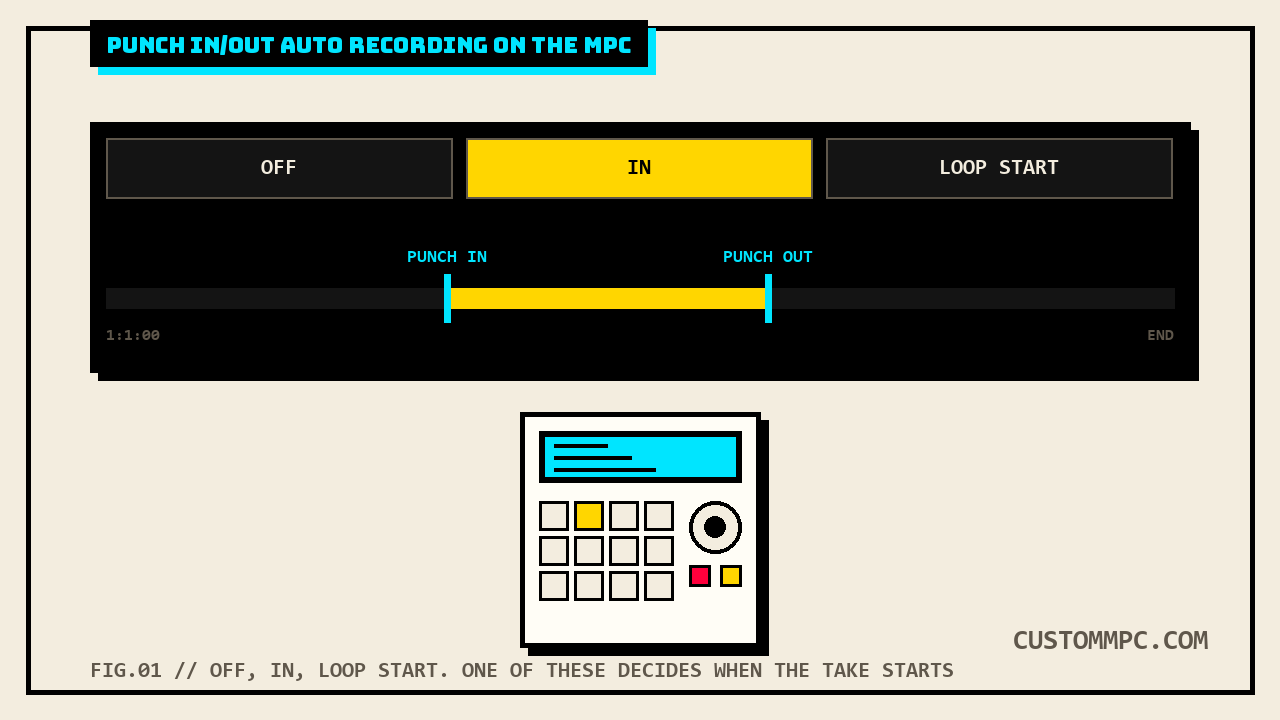
The Arrangement Section of Main Mode has three Auto Record buttons that decide how punch-in auto recording is enabled: Off turns it off, In starts recording automatically once playback reaches the Punch In point, and Loop Start starts recording automatically once playback reaches the Loop Start point instead. A separate Punch In and Out field sets the start and end points that the In mode actually uses. None of that requires a loop to be active. Separately, the arrangement's own recording chapter documents a manual loop-and-replace recipe: activate Loop, drag the Loop Start and Loop End points, arm the track, and press Play. Recording begins right at Loop Start, and the instant it reaches Loop End, the arrangement switches itself to Overdubbing mode without you touching anything. Akai's own manual explicitly calls these two things cousins, not competitors: right after describing the loop recipe, it tells you that you can also use the Auto Record and Punch In/Punch Out functions of the Arrangement Section to get the same result a different way.
WORKING PRODUCER'S NOTE: the loop recipe is the one everybody actually uses, because it's the one you stumble into just trying to comp a verse. Set a loop around the bad four bars, arm the track, hit Play, play the fix, and by the time the loop wraps around you're already in Overdub and nothing outside those four bars got touched. The Auto Record buttons and the Punch In/Out field are the same idea built for a specific situation the loop recipe doesn't cover well: you want playback rolling from well before the fix, not just from the loop's own start, so you can hear the run-up and land the take at exactly the right moment instead of cold-starting the second the loop wraps. If you've never needed that, you've never needed Auto Record. If you have, it's already there.
Where this lives: the Arrangement Section
The Arrangement section displays recorded events on the linear timeline and provides easy access to its editing functions, and it's the same panel whether you're looking at it inside Main Mode or as the full Arrange Mode screen. The play icon starts playback of the arrangement, and double-tapping the linear timeline opens Grid View for whichever track is currently selected, which is the fast way to jump from a bird's-eye arrangement view down to note-level editing on the section you just fixed. Right between those two controls sit the Auto Record buttons and the Punch In and Out field, the two pieces this article is actually about. A pencil icon nearby opens a separate set of Arrangement Edit tools, Clear, Half-Speed, Double-Speed, Pitch Quantize among them, which is real functionality but a different job than punching in a take, and out of scope here.
The Auto Record buttons: Off, In, Loop Start
Three buttons, one job: deciding how, or whether, punch-in auto recording gets triggered once you press Play. The wording is identical across every current standalone-OS manual on file, so this is stable, documented behavior, not something that shifted between hardware generations.
| Button | What happens when you press Play |
|---|---|
| Off | Auto Record at Punch In is turned off entirely. Recording starts and stops purely on manual Rec Arm and Play/Stop, the way any ordinary arrangement recording works. |
| In | Auto Record at Punch In is enabled. Playback can roll from anywhere, and once it reaches the Punch In point set in the field below, recording begins automatically. |
| Loop Start | Recording begins automatically once playback reaches the Loop Start point, the same Loop Start used by the loop brace elsewhere in the arrangement. |
Read Off and In together and the actual design intent gets clearer: Off isn't a neutral default, it's specifically "auto record at Punch In is turned off," meaning the Punch In/Out field's start point is the thing being disabled, not recording in general. You can still record on an Off setting, you just have to arm and press Play/Rec yourself with no automatic hand-off. In flips that specific behavior on. Loop Start is a third, distinct option that doesn't reference the Punch In point at all, it keys off the Loop Start point instead, the exact term used a few pages later in the manual's own loop-and-replace recipe.
The Punch In and Out field
One field, two values: use the Punch In and Out field to set the start and end points for Punch In Auto Recording. That's the entire documented description of the field itself. What it actually does downstream depends on which Auto Record button is active: with In selected, the Punch In value is the point playback has to cross before recording kicks in automatically. With Loop Start selected, this field's Punch In value isn't the trigger at all, the separate Loop Start point is, since the manual defines Loop Start mode purely in terms of the loop's own start rather than this field. With Off selected, both values in this field sit inert, since punch-in auto recording is turned off at the button level regardless of what the field is set to.
Notice the field is named Punch In and Out, but the button-by-button description above only ever explains what starts a take, never what stops one. That's not an oversight on this article's part, it's exactly what's on the page, and it's significant enough to get its own section further down rather than getting glossed over here.
The other way in: loop-and-replace
Separately from Auto Record entirely, the manual's own arrangement-recording chapter documents a second, more manual path to the same "fix one section" goal, and it's the one most working sessions actually run on. To record into the arrangement timeline at all: tap Rec Arm on the selected track (or double-tap the track header and set Rec Arm to On), press Rec on the hardware to arm it, enter Arrange mode through Menu, then Arrange, or view the arrangement directly from Main Mode's own Arrangement header, and press Play to begin recording. That's the baseline. Loop-and-replace layers four more steps on top of it: tap the Loop button to activate loop, drag the beginning and end of the loop region to set Loop Start and Loop End, arm the track using the steps above, and press Play. Recording begins right at the Loop Start point, and once playback reaches Loop End, the arrangement automatically switches to Overdubbing mode, no button press required to make that handoff happen.
Two things worth underlining. First, "switch to Overdubbing mode" means exactly what it says, the first pass through the loop replaces whatever was there before, and every pass after that layers on top instead of erasing again, so you can keep the loop running and only the first lap is destructive. Second, the manual doesn't leave this recipe standing alone, the very next line is the direct cross-reference to Auto Record and the Punch In/Out field covered above, presented as an alternate route to the identical goal.
How the two systems actually connect
These aren't two unrelated features that happen to sit near each other in the manual. The Loop Start Auto Record button and the loop-and-replace recipe's own Loop Start point share the exact same term in Akai's own text, and there's only one Loop Start value defined anywhere on the arrangement timeline, so treating them as the same point is a straight reading of the manual, not a stretch. What the Loop Start Auto Record setting actually buys you over the manual loop-and-replace recipe is timing flexibility on how you enter it. Run the loop-and-replace recipe as written and recording starts the instant you press Play, full stop, because arming and pressing Play are the only two things gating it. Set Auto Record to Loop Start instead, and you can let playback roll from somewhere before Loop Start, hear the run-up, and have recording kick in automatically the moment playback actually crosses that point, whether that's the first pass through the loop or the fifth.
The In setting is the more flexible sibling of the two, because it's the only one that doesn't require Loop Start and Loop End to mean anything at all. Set Auto Record to In, set your own Punch In point in the field independent of any loop region, and playback can roll from anywhere on the timeline, arrangement start included, with recording kicking in automatically right at your chosen point. That's the closer analog to punch recording as it works on a tape deck or in a DAW: you're not looping a region, you're just marking where a fix should start and letting the machine catch the moment for you instead of trusting your own reflexes on the Rec button.
What happens at Punch Out: a documentation gap
Here's the thing worth stating plainly instead of quietly working around. The three Auto Record button descriptions, Off, In, and Loop Start, only ever describe what starts a take. None of the three says what happens when playback reaches the Punch Out point set in that same field, whether recording stops there, switches to Overdub there the way the loop-and-replace recipe does at Loop End, or simply keeps rolling until you stop it by hand. That's not this article filling in a blank with a guess, it's a real gap between what the field is named (Punch In and Out) and what the documentation actually spells out (only the In behavior, three times over).
The closest documented answer on file comes from a different Akai product entirely, not the standalone hardware OS. The desktop MPC Software's own Punch In feature, part of its Transport Controls rather than its Arrangement Section, is explicit about the Out side: while recording, the entire sequence plays, but only the area between the Punch In and Punch Out markers actually gets recorded over, and any part of the sequence before Punch In or after Punch Out remains untouched even if you perform over it. That's a real, sourced description of stop-at-Punch-Out behavior, but it's describing a different product's Sequence-level transport controls, not the standalone hardware's Arrangement Section. It tells you what Akai has documented Punch In/Punch Out doing elsewhere in their own product line, and it's a reasonable steer for what to expect, but this article isn't claiming it's confirmed, word for word, as the standalone OS's own behavior. Per this site's sourcing rule, that's a gap that gets flagged, not silently closed with an assumption dressed up as a fact.
Common mistakes and quick fixes
Mistake: setting Auto Record to In or Loop Start and expecting the Punch Out value to visibly stop the take. The manual's Auto Record descriptions only document Punch In behavior. Don't assume a specific stop behavior at Punch Out on the standalone hardware, watch the arrangement and confirm what your unit actually does before trusting it on something you can't easily redo.
Mistake: leaving Auto Record on Off and wondering why the Punch In/Out field seems to do nothing. It isn't broken, Off explicitly disables punch-in auto recording at the button level, independent of whatever values sit in the field.
Mistake: setting Auto Record to Loop Start and also manually pressing Rec at the top of the loop. That's redundant. Loop Start mode already fires recording automatically the moment playback crosses the Loop Start point, the loop-and-replace recipe's own step 4 assumes you've simply armed the track and pressed Play, not double-triggered it by hand as well.
Mistake: reaching for Auto Record when you just need a quick comp over four bars. That's what the plain loop-and-replace recipe is for, tap Loop, drag the region, arm, press Play, done, with the auto-switch to Overdubbing at Loop End already built in. Auto Record earns its keep specifically when you need playback rolling from well before the fix.
Mistake: looking for the Loop button in the same screen position across every manual revision. It's moved. See the version note below.
A note on manual versions
Rule two on this site is that conflicts and differences between sources get stated, not quietly resolved, and this article has two worth flagging precisely, including a correction to how this topic's own source pages were first logged before writing began.
First, the page numbers. The Arrangement Section text covering the Auto Record buttons and the Punch In/Out field sits entirely on one page in each manual, not two: page 129 in the current v3.9 guide, and page 124 in the older v3.7 guide, both confirmed by extracting each page directly from its own PDF rather than trusting a table of contents or an OCR text dump. That's a flat 5-page shift, not the 4-page shift this article's own sourcing notes assumed going in. The Recording Arrangements chapter, covering the loop-and-replace recipe and its Overdubbing hand-off, shows the identical 5-page shift: page 156 in v3.9, page 151 in v3.7. Both chapters' actual wording is otherwise identical word for word between the two manual versions.
Second, one real wording difference beyond the page numbers. Step 1 of the loop-and-replace recipe reads "Tap the Loop button at the top of the screen to activate loop" in the current v3.9 guide. The identical step in the older v3.7 guide reads "Tap the Loop button at the bottom of the screen to activate loop," naming the opposite half of the screen. Every other word in both versions of this four-step recipe, including the Loop Start to Overdubbing hand-off itself, is unchanged. This reads as a genuine interface layout change between OS revisions rather than a typo, since it's an internally consistent, deliberate word swap (top for bottom) rather than a dropped or garbled line, but this article is stating the delta rather than guessing which screen generation you're looking at.
Verdict: which one to reach for
VERDICT
Quick comp, a few bad bars, nothing fancy: loop-and-replace. Tap Loop, drag Loop Start and Loop End around the section, arm the track, press Play. It switches to Overdubbing at Loop End on its own, and it's the workflow you'll use nine times out of ten. Need playback rolling from well before the fix so you can hear the run-up and land the take cleanly: set Auto Record to In, set your own Punch In point independent of any loop region, and let the machine catch the moment instead of your thumb on the Rec button. Want that same auto-trigger but tied to an actual loop's start point instead of a standalone punch point: Auto Record set to Loop Start does that specifically, and it's the one setting that shares real terminology with the loop-and-replace recipe rather than running parallel to it. Trying to rely on the Punch Out point to cleanly end a take on the standalone hardware: test it on your own unit first. The manual documents what starts a take in detail and stays quiet on what stops one, and this site isn't going to paper over that with a guess dressed up as a fact.
Found different Punch Out behavior on your own MPC than what's documented here? Tell us what happened.