GUIDE MPC Pro Pack
MPC clip launching: the complete guide to Clip Matrix, scenes, and the Clip Editor
Buy the MPC Pro Pack and the hardware grows three new modes at once: a Clip Matrix that turns every pad into an Ableton-Force-style clip trigger, a Navigate Mode for steering an 8x8 grid too big for 16 pads at a time, and a Clip Editor that treats each clip as its own miniature project with its own time signature and loop points. None of it shows up until one preference is flipped and the unit restarted. Every mode, every field, and the one workflow genuinely new since v3.7, checked page by page against Akai's own manual.
The short version
Clip launching is not a standalone-OS default. It arrives entirely with the MPC Pro Pack, and Akai's own manual describes it as a straight port of a workflow from a different product line:
"The MPC Pro Pack brings the full clip-launching workflow of the Akai Force to your MPC."
Once it's turned on, three new modes appear: Clip Matrix Mode (an 8x8 grid of clips per track, launched from the pads), Navigate Mode (a way to steer which 8x8 section of a larger grid is in focus), and Clip Editor Mode (a per-clip editing view with its own time signature, loop points, and grid view). The Arrangement Section of Main Mode also grows a parallel "Clips" view alongside its usual linear-sequence view. This article covers all four in the order Akai's own addendum presents them, plus the one workflow this site could confirm is genuinely new since the v3.7 manual, not carried over unchanged.
RIO'S NOTE: The instinct coming from Ableton is to treat this like Session View and expect it to behave identically. Close, but the vocabulary is different enough to trip you up: Akai's manual calls a whole column of simultaneous clips a "scene" same as Ableton, but the field that decides whether a clip restarts or keeps playing through a launch is called Legato here, not "Legato" tucked away in a preferences pane. It's the same idea, phrased through Akai's own manual rather than assumed from another DAW.
The gate: Pro Pack plus one preference
Two separate steps stand between stock hardware and a working Clip Matrix. First, the Pro Pack itself has to be purchased and activated:
"The MPC Pro Pack can be purchased as an upgrade for all Gen 1 MPC standalone hardware running MPC v3.6 or later. To purchase the MPC Pro Pack, visit thempcstore.com / akaipro.com. You can unlock the Pro Pack on up to three supported devices. To unlock the Pro Pack, use the Activations tab of the Preferences."
Second, even with the Pro Pack unlocked, clip workflow itself is off by default and has to be enabled separately, with a restart required before it takes effect:
"Once the MPC Pro Pack is activated, you must enable Clip Workflow by doing the following: 1. Press Menu to open the Menu, and then select Preferences. 2. In the Project Defaults tab, tap the Use Clip Workflow box to enable clip workflow. Turning this feature on or off requires you to restart your MPC hardware."
A separate wrinkle worth flagging before opening an old project on Pro Pack hardware: importing an MPC2-era project into MPC3 with Clip Workflow already enabled triggers its own import dialog, asking whether existing sequence data should land in the ordinary Sequences list or get folded straight into the Clip Matrix. That is a one-time decision per imported project, not a persistent setting, so it is worth getting right the first time rather than reimporting to change it.
Clip Matrix Mode
With clip workflow enabled, Clip Matrix Mode is the home base for building and triggering clips:
"Clip Matrix Mode gives you an overview of your tracks and clips. To enter Clip Matrix Mode, press Menu and then navigate to Clip Matrix on the second page of modes and tap it."
Creating and triggering a clip is deliberately low-friction:
"Double-tap an empty clip slot to create a new clip. Alternatively, tap and hold on an empty clip slot, and then tap Create. Tap an existing clip to launch it. Tap the scene launch icons on the far right of the display to launch a scene."
The touchscreen grid is only ever 8 tracks by 8 clips visible at once, so navigating a bigger project means moving the view rather than the clips themselves:
"Tap the + icon at the top of the display to add a new track. If your project already has 8 tracks, move the Matrix view to the right to show this icon. Tap the Move buttons at the bottom of the touchscreen to move the current matrix display view. To move the display by eight rows or columns at a time, hold Shift and tap the Move 8 buttons."
The 16 hardware pads themselves are reassignable to three different jobs inside this mode, one toggle deciding what a pad press actually does:
"Tap the Pads: button at the bottom of the touchscreen to change the hardware pad functions: Select Notes to use the pads in Pad Perform mode to play notes or chords. Select Clip Launch to use the pads to launch clips. Each pad will represent a clip in the current focus view of the 8x8 Clip Matrix. … Select Row Launch to use the pads to launch an entire row, or scene. Row 1 will begin with Pad 13, then move left-to-right and down for each available row."
That three-way Pads toggle is worth sitting with: the same 16 pads that build a beat in Pad Perform mode become 16 individual clip triggers in Clip Launch, or 16 scene triggers in Row Launch, all without leaving Clip Matrix Mode or touching a menu beyond that one field. One more track type deserves a direct mention, since it is easy to assume the matrix is only for instrument tracks:
"Tap Buses to view the Submixes, Returns, and Output tracks. You can create and launch clips for automation on these tracks using the same methods as tracks, explained below."
That means a mix-automation move, a filter sweep on the Master bus, a send level ramping up for a breakdown, can live in the same clip-launch grid as the musical clips themselves, triggered the same way.
Reading a clip's status color
Every clip slot changes appearance to reflect exactly one of eight states at any moment, and Akai's manual lists all eight together:
"The clips in Clip Matrix Mode will change appearance based on their current status: Stopped, playback stopped. Stopped, playback active. Prepared to play. Playing. Prepared to record. Recording (flashing). Overdubbing. Exiting recording (flashing). Prepared to stop."
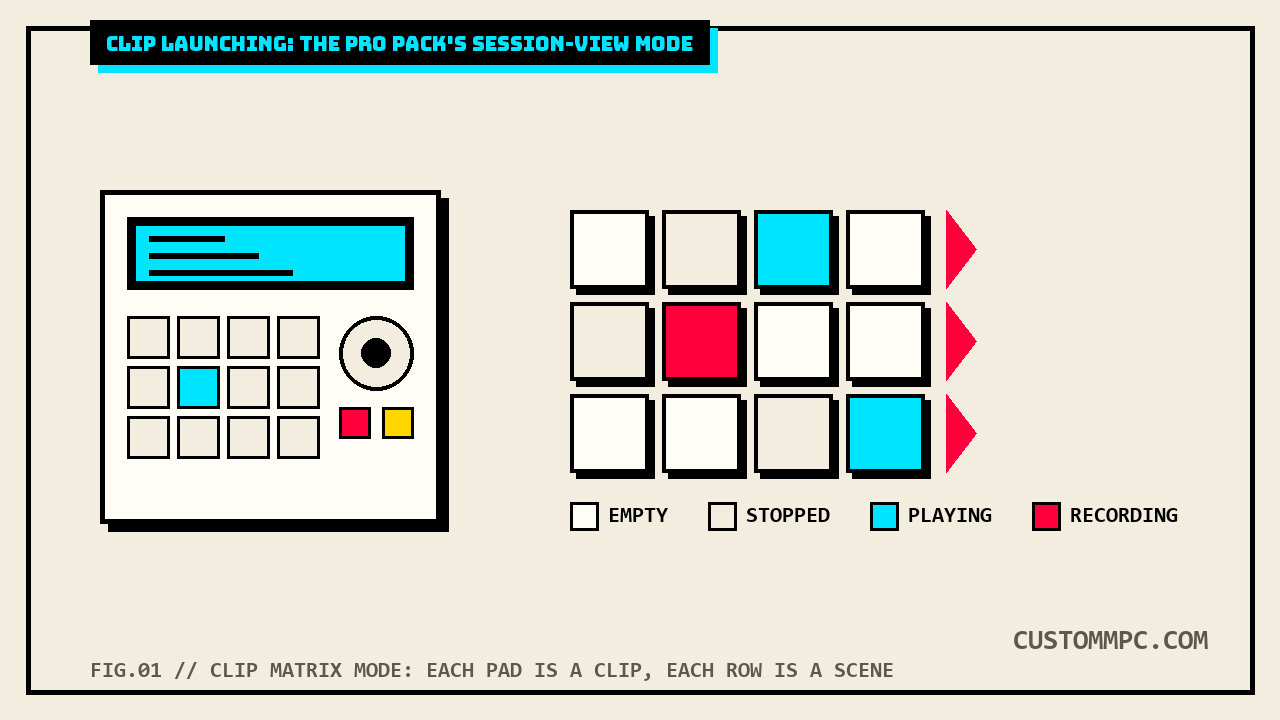
Two things worth calling out about that list. First, it is nine states, not eight, once "Stopped" is counted in both its playback-stopped and playback-active forms, since the manual's own layout distinguishes a clip that is simply empty of activity from one that has content queued but paused. Second, two of the nine are explicitly flashing rather than solid, Recording and Exiting recording, which is the manual's own way of visually separating an in-progress capture from a settled state. None of this is guessed at from general MPC knowledge, it is read directly off the status list on the page, and it is the reason the article's own hero and card images above use four simplified colors (empty, stopped, playing, recording) rather than all nine of the manual's precise states, a deliberate simplification for legibility at a glance, not a claim that only four states exist on the hardware.
Scenes: launching a whole row at once
A scene is a full row across every track's clip lane, and building one starts from the Scene Launch column on the right edge of the matrix:
"To insert a new scene or clear a scene, tap and hold on a Scene Launch button to open the Edit Row window. Tap Insert to insert one new scene row. Tap Insert 8 to insert 8 new scene rows. Tap Insert & Capture to capture any clips currently playing in other scenes and add it to the new scene."
Insert & Capture is the detail easy to miss on a first read: it lets a new scene start from whatever is already playing across the matrix at that moment, rather than starting empty and forcing a rebuild. The same row-level menu also handles the linear arrangement's own row:
"To clear or copy the arrangement, tap and hold on the Arrangement Row Launch button to open the Edit Arrangement Row window. Tap Clear to clear the arrangement row. Tap Copy to copy the arrangement row. You can then paste the arrangement event list to a clip row by opening the Edit Row window (described above) and selecting Paste. Any loop regions from the arrangement row will automatically be matched in the new clips. This can allow you to take sections of your arrangement to create new clip rows."
That copy-from-arrangement path is a genuine bridge between the site's linear song-building workflow, already covered in this site's Song Mode guide, and the clip-launch performance workflow this article covers: a section already arranged linearly can become a launchable clip row without re-recording anything, loop points carried over automatically. A per-row Row Settings window controls how a row behaves once it exists:
"Use the Include in row launch/Exclude from row launch field to determine the behavior of clips in the track when launching scenes. Select Include in row launch to launch the track's clips when launching scenes, or select Exclude from row launch to stop the track's clips from launching."
That per-track opt-out is what lets one track, a drone pad held across an entire section, for instance, keep running untouched while every other scene change fires around it, rather than being forced to restart on every scene launch.
The Launch Configuration window
Global playback behavior for the whole matrix lives in one settings window, opened from the display's own header:
"To open the Launch Configuration window, tap the upper-right corner of the display where the BPM and Launch Quantization are located. You can then do any of the following: Use the Tempo field to set the project tempo. … Use the Default Length field to set the default clip length for the project. Use the Quantization field to set the global quantization amount for launching all clips. Use the Empty Slots field to determine the appearance of clip launch pads without clips."
Global Quantization here is the field that decides whether tapping a clip fires it instantly or waits for the next musical boundary, the same launch-quantize concept Ableton users already know, phrased through Akai's own field names rather than assumed.
The Record Configuration window
A separate window, opened by holding the hardware Record button, controls how recording into a clip actually begins:
"To open the Record Configuration window, press and hold Record, and then tap Settings. Check the Write automation when recording box to capture automation while recording. Use the Record Launch field to set how recording is initiated: Clip: Tap any clip launch pad while the track is armed to begin recording. Record or Clip: Tap any clip launch pad while the track is armed to begin recording, or press the Record button to begin recording on the highlighted clip slot. Record then Clip: First press the record button, then tap any clip launch pad to begin recording."
Those three Record Launch options each answer a different performance habit: Clip suits someone who wants to just tap a pad and go, Record then Clip suits someone who wants to arm first and choose the destination clip a beat later, and Record or Clip is the hybrid that accepts either gesture. None is the "correct" one, they are three different muscle memories the field lets a performer pick between.
Navigate Mode
Because the touchscreen only ever shows an 8x8 window into a matrix that can hold far more tracks and clips, a dedicated mode exists purely to reposition that window:
"Navigate Mode lets you quickly select which 8x8 grouping of clips is currently in focus in Clip Matrix Mode. To enter Navigate Mode, press Menu and then navigate to Navigate on the second page of modes and tap it. To move the matrix view, use your finger to tap or drag to the desired location."
It is a short entry in the manual, two sentences and a mode-entry step, and worth flagging precisely because of that brevity, next to the Clip Matrix's Shift+Move-8 shortcut described earlier, Navigate Mode is the other, coarser way to cover the same ground: drag once instead of holding Shift and tapping repeatedly.
Clip Editor Mode
Where Clip Matrix Mode is about triggering clips, Clip Editor Mode is about shaping what is inside one:
"The Clip Editor lets you view and edit the parameters of the clip container itself. This view has three different appearances: one for audio tracks, one for drum tracks, and one for keygroup, plugin, MIDI and CV tracks. To enter the Clip Editor, do either of the following: • Press Menu, press Menu and then navigate to Clip Editor on the second page of modes and tap it. • Tap Clip at the top of the screen in Arrange Mode, Grid View, or List Edit Mode."
Inside the editor, per-clip time signature is a genuinely deep field, letting an individual clip run a different meter from the rest of the project:
"Tap the Time Signature fields to adjust the time signature of the clip. The numerator (top/first number) indicates the number of beats per bar (1 to 16). The denominator (bottom/second number) indicates the note value of each beat (4, 8, 16, 32). Time signatures can be set individually per clip (and per sequence)."
Playback and looping fields round out the editor, all pulled directly from the same page:
"Use the Start fields to set the starting location of the clip when launched. … Use the Launch Mode field to set how the clip is launched. Select Toggle for the clip to start or stop with each successive press. Select Trigger for the clip to start at the beginning with each press. … Tap Legato to enable or disable legato. When Legato is active, the playhead will continue from the same position as it was in the previous clip of the same track when switching between clips. This is useful for creating seamless fills in drum breaks or when using an a capella track."
Legato is the field worth pausing on, since it directly answers the most common worry about clip-based performance: does switching clips mid-phrase chop the groove. With Legato on, the answer is no, the new clip inherits the exact playback position of the one it replaced, which is precisely why the manual's own example is drum-break fills and a capella sections, places where a hard restart would be audible and wrong.
Main Mode: the Arrangement & Clip section
The last piece is not its own mode at all, it is an expansion of Main Mode's existing Arrangement section to also handle clips:
"The Arrangement & Clip section displays recorded events from the linear arrangement timeline or the selected clip and provides easy access to their editing functions. The Arrangement & Clip header shows either the arrangement or the selected clip number and name. To change clips, tap the Arrangement & Clip header and use the data dial or +/- buttons."
Tapping the Clip Number opens a dedicated Clip Settings menu with its own take on several fields already seen in the Clip Editor, naming and launch behavior chief among them:
"Use the Name field to rename the clip. … Use the Launch Mode field to set the clip launch behavior. Select Toggle for the clip to start or stop with each successive press. Select Trigger for the clip to start at the beginning with each press. Check the Legato box to enable legato mode for the clip. … For example, if launch quantization is set to 1 bar, launching a legato clip at Bar 1, Beat 2 of another playing clip will cause the legato clip to begin playing at Bar 2, Beat 1. If legato is off, the clip would begin playing from the start."
That worked example is the clearest single sentence in the whole chapter for understanding Legato's actual timing math: a legato clip launched mid-bar does not snap to bar 1, it picks up wherever the outgoing clip's playhead already was, offset forward to the next valid launch-quantize boundary. A handful of clip-level editing functions round out this section, several of them track-type-specific:
"The Bounce to Sample function renders the Selected Clip or All Clips as an audio sample and places it in the project's sample pool. … The Bounce to Audio Track function renders the Selected Clip or All Clips and adds it as a new audio track in the project. … This function does not work for MIDI tracks or CV tracks. … The Flatten and Flatten Elastique functions flatten the audio clip, rendering all the edits and regions within the arrangement to a single new audio file. The Elastique Pro algorithm can be used for time-stretching or pitch-shifting, providing higher-quality results with less artifacts than Force's standard algorithm."
That last function, Flatten Elastique, is the same Elastique Pro algorithm this site's Time Stretch and Warp guide already covers for the Sample Edit and Warp workflows, applied here to a clip instead of a static sample. Flatten and Flatten Elastique are the two functions in this whole chapter restricted to Audio tracks specifically, everything else in the Clip Edit menu (Humanize, Random Events, Split Events, Convert to Progression, and the Bounce functions) is available more broadly across Drum, Keygroup, Plugin, and Audio tracks per the manual's own track-type notes.
What's actually new since v3.7
Every quoted field above was checked against both the v3.9 and v3.7 manuals, and the overwhelming majority of this chapter is word-for-word identical between the two. One piece is not. Akai's own v3.9 changelog documents it directly, under its own heading, early in the manual rather than buried in the addendum:
"Time Signature per Sequence and Clip. You can now set time signatures per sequence, and per clip for MPC Pro Pack users with Clip Launching Behavior enabled. To adjust the sequence time signature, use the Time Signature field in the Sequence Section of Main Mode. … To adjust a clip time signature, use the Time Signature field at the top of the screen in Clip Editor Mode. Alternatively, use the Time Signature Numerator and Time Signature Denominator fields in the Clip Settings window."
Independently confirmed against the addenda pages themselves, not just the changelog's own say-so: v3.9's Clip Editor Mode page (p.495) carries the full Time Signature field description with its own Do It/Cancel workflow, and v3.9's Clip Settings window (p.498) separately carries Time Signature Numerator and Denominator fields, both of which are simply absent from the equivalent v3.7 pages (p.466 and p.468 respectively), which jump straight from the Color field to Launch Quantization with no time-signature step in between. This is a real, disclosed feature addition, not a rewording, per-clip time signature genuinely did not exist as a settable field in v3.7's Clip Editor or Clip Settings, full stop.
That single addition is also the reason this chapter's own page-count grows unevenly between manual versions. The chapter opens at a flat 29-page offset (v3.9 p.487 against v3.7 p.458) and holds that exact offset through Clip Matrix Mode, Scenes, the Launch and Record Configuration windows, and Navigate Mode (v3.9 p.493 against v3.7 p.464, confirmed identical text on both pages). The offset then grows to 30 pages starting inside Clip Editor Mode, the new Time Signature paragraph pushes every page after it one page later in v3.9 than the flat offset would predict, confirmed directly: v3.9's Main Mode Arrangement & Clip Section heading lands on p.497, its word-for-word match in v3.7 sits on p.467, a 30-page offset, not 29.
Common mistakes
Mistake: enabling the Pro Pack and expecting Clip Matrix Mode to appear immediately. Clip Workflow is a separate preference from Pro Pack activation, and toggling it requires a full hardware restart before the new modes show up.
Mistake: assuming the 8x8 grid on screen is the whole project. It is a movable window. A project with more than 8 tracks or 8 clips per track needs the Move buttons, Shift+Move-8, or Navigate Mode to reach the rest.
Mistake: launching a legato clip and expecting it to restart from bar 1. Legato deliberately picks up from the outgoing clip's own playhead position, offset to the next launch-quantize boundary, not from the start of the new clip.
Mistake: trying to set a per-clip time signature on v3.7 firmware. That field does not exist until v3.9. On v3.7 hardware, every clip runs the project's global time signature with no per-clip override.
A note on manual versions
Every technical claim above is checked directly against Akai's Standalone OS User Guide, Manual Version 3.9, cross-checked against Manual Version 3.7. The chapter is word-for-word identical between versions from its opening page through Navigate Mode, a flat 29-page offset (v3.9 pp.487-493 against v3.7 pp.458-464, each page confirmed individually by direct single-page extraction of the printed footer number, not inferred from the linearized whole-document text stream). The offset grows to 30 pages from Clip Editor Mode onward (v3.9 pp.494-499 against v3.7 pp.465-469), a direct consequence of the new per-clip Time Signature content documented in What's actually new since v3.7 above, not an error in either citation. This site's Arpeggiator guide and Mute Groups guide both documented similar non-uniform drift elsewhere in the same manual, so a shift changing mid-chapter is treated as expected here, and independently re-confirmed rather than assumed to hold at one number for the whole addendum.
One quoted passage's punctuation was normalized for this site's house style: the Clip Editor's Time Signature field description uses an en dash character in the source PDF's number ranges ("1 to 16" and similar), rendered here in the blockquote as spelled-out "to" ranges rather than reproduced with the source's dash character. The numbers themselves are unchanged, only the connecting punctuation was normalized, the same convention already documented in this site's Mute Groups guide and Arpeggiator guide.
Verdict
VERDICT
Want to trigger loops and one-shots live, Ableton-Session-View style: buy the Pro Pack, enable Clip Workflow in Project Defaults, and build in Clip Matrix Mode with the Pads field set to Clip Launch. Want to fire whole sections at once: Scene Launch and the Row Settings Include/Exclude field. Want a clip to keep the groove going instead of restarting when you switch: Legato, in either the Clip Editor or the Clip Settings window. Want an individual clip in its own meter: the per-clip Time Signature field, genuinely new since v3.7, not available on older firmware. All of it sits behind one restart-required preference toggle most people never find until they go looking for it.
Found a Clip Matrix workflow worth sharing, or a Pro Pack quirk that surprised you? Tell us what happened.