GUIDE Software
MPC Beats vs. full MPC software: what's free, and what you're actually missing
Akai gives away a real piece of the MPC workflow for nothing, and most people never open it because they assume "free" means "demo." It isn't. MPC Beats is a genuinely separate, permanently free application with its own track limits, its own bundled plugins, and its own first-run setup wizard, and unlike every other piece of software this site covers, it doesn't ask you to own a single piece of MPC hardware to run it. Here's exactly what's inside, what full MPC software adds on top, and how the two setup flows actually differ, checked against Akai's own manual page by page.
The short version
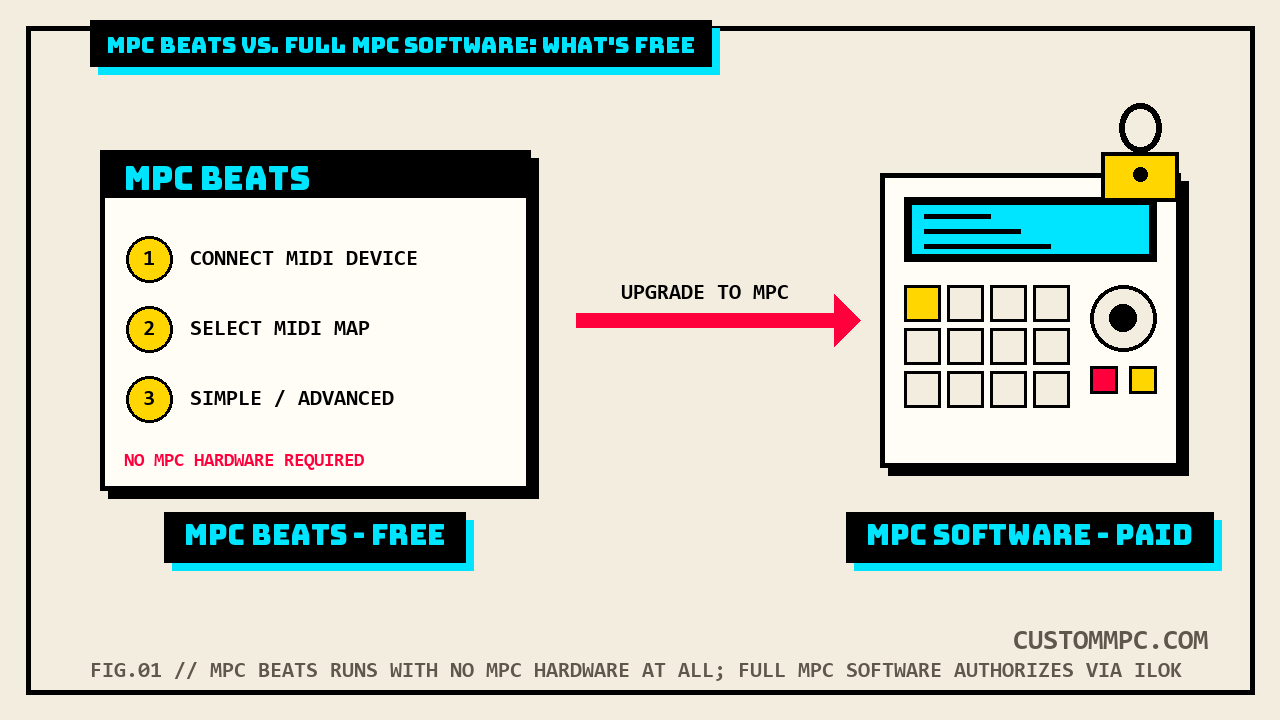
MPC Beats is Akai's free desktop application, and Akai's own manual describes it as bringing "many of the most essential beat-making tools of the MPC software to anyone, without the need for dedicated MPC hardware." It supports up to 8 MIDI tracks, up to 2 stereo audio tracks, 4 Send channels and 8 Submix channels, the AIR FX Bundle of insert effects, and three named AIR instrument plugins: Bassline, Electric, and TubeSynth. Full, paid MPC software raises that ceiling to 128 MIDI tracks and 128 audio tracks per sequence, adds a larger plugin catalog, and is what every other article on this site assumes you're running. The two also set up differently: full MPC software's Getting Started steps have you power on MPC hardware and authorize through an iLok account, while MPC Beats' first-run Startup Wizard never mentions hardware ownership or authorization at all. Upgrading later is one menu path: the menu icon, Help, then Upgrade To MPC.
SOUND DESIGN NOTE: I judge every pack, plugin, and piece of software the same way, by how fast it gets you to a beat you can actually play back. MPC Beats passes that test on day one with nothing else plugged in. Three bundled instruments and a real effects rack is enough to chop, program, and mix a finished idea before you've spent a dollar or bought a single piece of gear.
What MPC Beats actually includes
Page 7 of Akai's own MPC Software User Guide lays out the MPC Beats feature set as a flat bullet list, right next to the introduction, before the manual gets into installation or workflow at all. Every number below is quoted directly, not rounded.
| Spec | MPC Beats (free) | Full MPC software (paid) |
|---|---|---|
| MIDI tracks per sequence | Up to 8 | Up to 128 |
| Stereo audio tracks per sequence | Up to 2 | Up to 128 |
| Send channels | 4 | Same architecture, full plugin roster |
| Submix channels | 8 | Same architecture, full plugin roster |
| Insert effects | AIR FX Bundle | AIR FX Bundle plus additional plugins |
| Bundled instrument plugins | AIR Bassline, AIR Electric, AIR TubeSynth | Additional plugins beyond the three named above |
| MPC hardware required | No | Yes, for the authorization flow described below |
That "additional plugins" phrasing on the paid side is Akai's own wording, not this site rounding up. The manual names the exact upgrade destination, "the complete MPC experience with up to 128 MIDI and audio tracks, additional plugins and more," but doesn't itemize which additional plugins beyond Bassline, Electric, and TubeSynth ship with the full version. If you want the deeper plugin story once you're running full MPC software, including scanning your own folder of third-party VST or AU instruments on top of whatever AIR bundle you land with, that's covered start to finish in our guide to using MPC software as a plugin (and loading plugins inside it), which is entirely full-software territory and doesn't apply to MPC Beats.
Zero MPC hardware required, genuinely
This is the detail that separates this article from almost everything else on this site. Every buying guide, keygroup walkthrough, and mixer breakdown here assumes you already own an MPC, live, standalone, or classic. MPC Beats breaks that assumption on purpose. Akai states it plainly in the same sentence that introduces the software: it brings the essential tools "to anyone, without the need for dedicated MPC hardware." That's a real on-ramp, not marketing shorthand. The Getting Started chapter backs it up structurally: it splits into two entirely separate procedures, one titled "MPC Software" that opens with powering on MPC hardware, and one titled "MPC Beats Software" that opens with simply opening the application on your computer, no hardware step listed at all. The one moment MPC Beats' own setup mentions any external gear is the Startup Wizard's first step, which asks you to connect a MIDI device over USB, and Akai's language there is generic: "select the MIDI map for your controller. Maps for many of the most popular MIDI controllers are available," not a requirement that the controller be Akai hardware specifically. Worth stating precisely rather than rounding up further: the manual doesn't say what happens if you skip that step or run the wizard with no MIDI device connected at all, so this article isn't going to claim a hard guarantee the source itself doesn't spell out. What it does state clearly is that nothing in either the MPC Beats introduction or its Getting Started steps requires MPC-branded hardware, or any hardware authorization at all.
Setting up full MPC software: hardware and iLok
Full MPC software's Getting Started steps read like a hardware-first checklist. Step one is powering on your MPC hardware. Step two is opening the software on your computer. Step three is authorizing your copy of MPC, which requires an iLok account, created at ilok.com, and a PACE code from that account entered when the software asks for it during the authorization process. Owners of the touchscreen models, MPC X, MPC Live, MPC Live MKII, and MPC One, then have a mode check to run: look at the upper-right corner of the window for a monitor/cable icon, meaning the hardware is already in Controller Mode and ready to continue, or a chip icon, meaning it's in Standalone Mode and needs switching over through the hardware's own Menu screen first. Only after all of that does the manual get to audio setup: open Preferences (Edit > Preferences on Windows, the MPC menu on macOS), click the Audio tab, and select a sound card, with Akai specifically recommending your MPC hardware's own built-in sound card over a generic option.
- Power on your MPC hardware before opening the software at all.
- Open MPC software on your computer.
- Authorize with iLok, an account created at ilok.com, using your PACE code when prompted.
- Touchscreen model owners: confirm Controller Mode in the upper-right corner, switching over from Standalone Mode through the hardware's Menu if needed.
- Set your sound card in Preferences > Audio, ideally your MPC's own ASIO driver.
Setting up MPC Beats: the Startup Wizard
MPC Beats' Getting Started steps skip every one of those hardware and authorization requirements. Step one is just opening the software. On first launch, the Startup Wizard takes over with three steps of its own: connect a MIDI device over USB, select the MIDI map for that controller from a library of maps for popular controllers, and choose between a Simple or Advanced workspace layout, a setting you can change later from the menu icon under View > Workspace. Clicking Start Making Beats exits the wizard, and it isn't a one-shot thing bolted to first launch either: you can reopen it any time from the menu icon, Edit, Open Startup Wizard, if you swap controllers or just want to redo the workspace choice. From there, the last two steps mirror full MPC software's audio setup almost word for word, open Preferences, click the Audio tab, pick a sound card, except the hardware-specific ASIO recommendation is gone, replaced with general advice to use an external audio interface when possible. Nowhere in either of those four steps does the word iLok, PACE, or authorize appear. That's not this article reading between the lines, it's the literal, checkable absence of a phrase that shows up exactly once anywhere in the entire manual, in full MPC software's step 3 and 4 above.
- Open MPC Beats. No hardware power-on step precedes it.
- Run the Startup Wizard on first launch: connect a MIDI device, pick its map, choose Simple or Advanced.
- Click Start Making Beats to exit, or reopen the wizard later from Edit > Open Startup Wizard.
- Set your sound card in Preferences > Audio; an external interface is recommended, but nothing hardware-specific is required.
The upgrade path: Help > Upgrade To MPC
Akai puts the upgrade path in the same paragraph as the MPC Beats feature list, one sentence after describing what's free: click the menu icon, select Help, then click Upgrade To MPC. Akai also points to akaipro.com directly for anyone who wants pricing or more detail before committing. That's the entire documented mechanism. The manual doesn't walk through what the upgrade purchase flow itself looks like once you click it, whether it opens a browser checkout, what it costs, or whether an iLok account becomes required at that point the way it is for a fresh full-software install. Those specifics live outside the v2.8 User Guide's scope, and this article isn't going to guess at pricing or a checkout flow the source doesn't document.
Starter Rack 001 inside MPC Beats
Here's the actual test of "zero MPC hardware, genuinely": can someone with nothing but a laptop and MPC Beats installed load real content and get to a beat. Our own free kit, Starter Rack 001, is exactly that kind of content. It's 25 original drums and one-shots, cleared for release, shipped in an .XPM edition built for MPC 2 and 3 software, the same generation MPC Beats runs on, plus the raw 24-bit WAVs if you'd rather build your own program from scratch.
The path is short precisely because it doesn't touch anything this article flagged as full-software-only. Download the pack from the free kit page, unzip it, open MPC Beats, and load the .XPM the same way you'd load any drum program, no iLok account, no MPC hardware plugged in, no upgrade purchase. A drum program loaded onto a track is a drum program regardless of which tier of software is playing it back. Where MPC Beats' limits actually show up is track count, not content: with 8 MIDI tracks and 2 stereo audio tracks total, you're building compact sessions by design, layering a handful of pattern variations rather than running a 40-track arrangement. For a starter kit meant to get a first beat on the pads fast, that ceiling isn't a wall you'll hit on day one.
Common mistakes and quick fixes
Mistake: assuming MPC Beats is a crippled trial. It isn't time-limited or feature-locked toward forcing a purchase in the way a typical software demo is. Akai's own manual frames it as a standing free product with its own fixed spec sheet, not an expiring preview.
Mistake: buying MPC hardware just to run MPC Beats. Unnecessary. The whole point of the free tier, stated directly in the manual's own introduction, is running it with no dedicated MPC hardware at all.
Mistake: hunting for an iLok prompt during MPC Beats setup and assuming something's broken when it never appears. Nothing's broken. The iLok/PACE authorization step exists in full MPC software's Getting Started procedure and nowhere in MPC Beats' four setup steps.
Mistake: expecting the Upgrade To MPC menu item to show pricing or a full changelog on the spot. It's a launch point to akaipro.com, not an in-app spec comparison. Check the site directly before assuming a cost.
A note on sources
Every claim in this article comes from a single primary source, Akai's MPC Software User Guide, Manual Version 2.8: the "MPC vs. MPC Beats" comparison on page 7, the "MPC Software" Getting Started steps on page 10, the "MPC Beats Software" Getting Started steps on page 11, and the track-count footnotes in the Basic Concepts chapter on page 12. No retailer page, forum thread, or review was used for any spec, step, or number, every quote above is checked directly against the manual's own extracted text.
The one finding worth flagging on its own: we grepped the full extracted text of the v2.8 manual for "iLok" and "PACE" specifically, since those are the terms that mark the authorization step this article treats as the real dividing line between the two setup flows. Both terms return exactly one hit each in the entire 12,000-plus-line manual, and both hits sit in the same two sentences of full MPC software's Getting Started section on page 10. Neither term appears anywhere in the MPC Beats Software steps on page 11, anywhere in the "MPC vs. MPC Beats" comparison on page 7, or anywhere else in the document. That's not a rounding-up interpretation of "MPC Beats doesn't need hardware," it's the literal, single-occurrence footprint of the word that defines full MPC software's authorization requirement, confirmed by grep rather than assumed from reading the setup steps once and moving on.
Verdict: do you actually need to pay
VERDICT
You own no MPC hardware and want to try the workflow: install MPC Beats. It's free, needs no MPC hardware and no iLok account, and ships with three real AIR instruments plus a full effects bundle, enough to finish a beat. You've outgrown 8 MIDI tracks or 2 audio tracks, or want a bigger plugin catalog: the upgrade lives one menu path away, the menu icon, Help, Upgrade To MPC, and Akai points you to akaipro.com for the details it doesn't document in-app. You already own MPC hardware: full MPC software's setup assumes that hardware from step one, powered on, checked for Controller Mode, and authorized through iLok, so that's the path built for you, not MPC Beats' laptop-only wizard.
Built something in MPC Beats with zero hardware attached? Tell us what happened.