TUTORIAL MIDI / Sync
How to sync your MPC to a DAW with MIDI clock
MIDI clock gets treated like a magic wire that locks two machines together completely. It does one job: tempo and start/stop. Here is how to set a standalone MPC as the clock master or the clock slave, the reciprocal setting on the Ableton Live side, and the parts of this that Akai's own manual admits are limited, not the parts a forum thread guesses at.
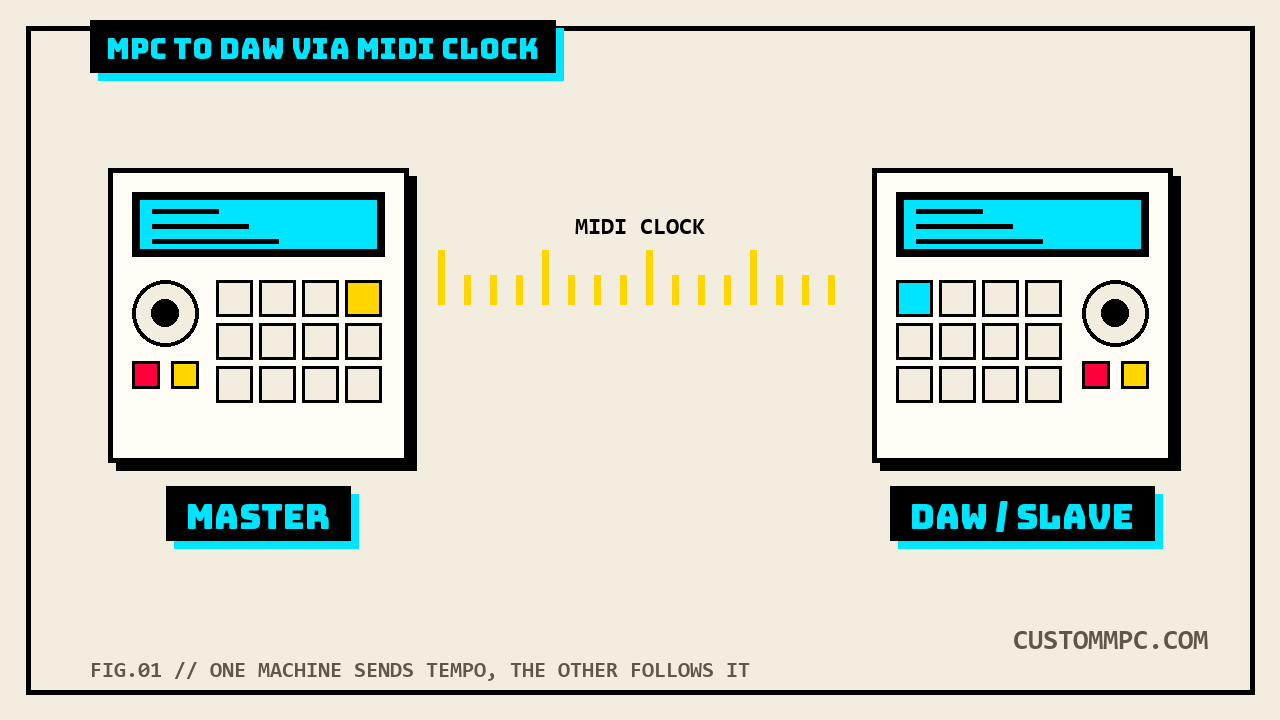
The short version
Every current standalone MPC, One, Live, Live II, Live III, X, X SE, Key 37, and Key 61, shares one settings screen for this: Preferences, then the tab Akai's own manual calls "MIDI / Sync" in one place and "the Sync tab" in another. Two fields on that screen matter here. Send makes the MPC the clock master, broadcasting tempo to whatever is listening. Receive makes it the slave, following somebody else's tempo. They are independent fields, not a toggle, so nothing stops you from misreading which one you actually changed.
Ableton Live's side of this is a Sync checkbox buried in a MIDI Ports table, plus an EXT button in the Control Bar that a lot of people never notice because nothing prompts you to look for it. We'll wire up both directions: MPC feeding tempo to Live, and Live feeding tempo to the MPC.
WORKING PRODUCER'S NOTE: if you only need your drum machine and your MPC locked to the same tempo for a session and you're not chasing anybody's playback position, MIDI clock is the whole answer. If you need two timelines to line up frame-accurately for video or a scored cue, you want MIDI Time Code, a different field on the same screen, and a different conversation.
What MIDI clock actually syncs
Akai's own glossary keeps this narrow, and it's worth quoting exactly because most confusion about MIDI clock comes from assuming it does more: "The MIDI clock message transmits real-time tempo information to synchronize processes among several connected devices." Under that tempo pulse sit three transport messages, Start, Continue, and Stop, which is how pressing play on the master gets the slave moving instead of just speeding up or slowing down in place. That's the entire feature set: a shared beat and a shared go/stop signal.
What it is not: audio. No sample, no stem, no bounce crosses a MIDI clock connection, full stop. It's also not MIDI Time Code, a completely separate field on the same Preferences screen that transmits absolute hours:minutes:seconds:frames instead of a tempo pulse, which is why Akai's manual only brings up frame rates and film scoring in the MTC section and never in the MIDI Clock one. And it is not Ableton Link, even though Akai lists Link as a third option on the exact same Receive field, right next to MIDI Clock and MTC. Link is a network protocol, not a MIDI message: it runs over Wi-Fi or Ethernet and syncs "beat, phase, and tempo" between Link-enabled apps without a cable at all. Grouping all three under one field is convenient for Akai's menu design and genuinely confusing for anyone assuming "Receive: MIDI Clock" and "Receive: Ableton Link" are the same feature with a different transport. They're not, and picking one turns the others off on that field, since it's a single selector, not three checkboxes.
One more limit worth knowing before you wire anything up: MIDI clock's Start/Continue/Stop keeps two machines moving together once they're both rolling, but it does not by itself guarantee they start from the same bar if one of them was already mid-pattern when you hit play. That needs a separate, optional message called Song Position Pointer, and we could not find anything in Akai's standalone manual confirming whether the MPC sends or honors it. We're disclosing that gap rather than assuming it works.
Setting the MPC as clock master
This is the direction Sam's whole beat runs on: your MPC is the box you actually sequence and jam on, and you want a DAW, a drum machine, or another MPC to fall in line behind it.
Cable first. Run a standard 5-pin MIDI cable from the MPC's MIDI Out to the MIDI input of whatever you're syncing, or, on a computer, use the MPC's USB-C port as a class-compliant USB-MIDI device instead of a physical MIDI cable. Then, on the MPC: press Menu, tap the gear icon for Preferences, and open the tab Akai's reference chapter calls "MIDI / Sync." Set the Send field to MIDI Clock.
That alone is not the whole job. Scroll up to the Output Ports list on the same screen and check that Sync is enabled for the specific port you cabled up, since the manual is explicit that this per-port switch, not just the Send field, is what actually pushes clock messages out that connection: "When Sync is enabled, the MIDI output port will send MIDI sync messages according to the type set under Sync Send, below." Two settings, both required: the global Send type, and the per-port Sync flag. Miss the second one and you'll swear the feature is broken when it's actually just pointed at a port nothing is listening on.
There's no toolbar shortcut for this side. The one-tap Sync field at the top of the screen only mirrors Receive, confirmed by Akai's own wording, "This is the same setting as the Receive menu in the Preferences > MIDI / Sync tab," with no equivalent line anywhere for Send. If you're setting up as master, you're going into full Preferences every time, there's no quick-tap version.
Setting the MPC as clock slave
Same screen, opposite field, and one real gotcha Akai actually documents instead of leaving you to discover it.
Cable the other way: the external device's MIDI Out into the MPC's MIDI In, or the equivalent over USB-MIDI. On the MPC, Preferences > MIDI / Sync, set Receive to MIDI Clock. This one does have a fast path: tap the Sync field at the top-center of the screen, or double-tap it, and pick MIDI Clock directly without opening the full Preferences menu.
Now the gotcha, printed in the manual as an actual warning, not a support-forum rumor: "Audio recording is disabled when receiving MIDI Clock sync." Akai's fix is built into the same paragraph, "Use MIDI Time Code to record audio while receiving MIDI sync." If your session plan is "slave the MPC to Ableton's clock and record a live vocal or line-in take at the same time," that plan doesn't work as written. Switch Receive to MTC for that session instead, which means your DAW needs to send timecode, not just clock, a different setup on the DAW side.
One thing the manual documents clearly for the Output side and does not document at all for Input: the Output Ports list has an explicit Sync checkbox per port. The Input Ports list, covering the exact same screen, only lists Global, Control, and Track columns, no Sync column anywhere in that bullet. We can't confirm from the text alone whether that means clock reception is global across every connected input by design, or whether it's tied to whichever port a track's MIDI Input Port field happens to point at. Treat it as global until your own cabling proves otherwise, and don't be surprised if narrowing it down takes some trial and error.
The Ableton Live side of the cable
Live's sync controls live in its MIDI preferences, named Link/Tempo/MIDI Preferences in Live 11's own manual, under a MIDI Ports table with Track, Sync, and Remote columns per port, separate rows for Input and Output.
Making Live follow the MPC (MPC master): connect the MPC's MIDI Out to the input your interface or computer sees it on, then in Live's MIDI Ports table check Sync on that port's Input row. An EXT button then appears in Live's Control Bar; click it, or use External Sync in the Options menu, to actually engage following. The upper indicator LED beside EXT flashes when Live is receiving usable sync messages. On the MPC side this is the Send setup from the section above.
Making the MPC follow Live (Live master): connect the computer's MIDI Out to the MPC's MIDI In, check Sync on that port's Output row in the same table, and Live sends clock continuously once a valid tempo context is running, no EXT button needed on the sending side. On the MPC, that's Receive set to MIDI Clock from the section above.
The line that matters most if you've also got Ableton Link running on the same machine: "When Link is enabled, Live can send MIDI clock information to external devices, but cannot receive it; the External Sync switch is disabled when Link is enabled." Read that plainly: Live can still push clock out to your MPC with Link turned on, but it will not accept an incoming MIDI clock from anything, your MPC included, while Link is active. Turn Link off on the computer if you want Live to actually follow the MPC's tempo.
Quick reference: every sync field
| Field | Where | What it does |
|---|---|---|
| Sync (toolbar) | Top-center of the MPC screen | One-tap shortcut, Receive only: MIDI Clock, MTC, Ableton Link, or Off |
| Receive | MPC Preferences > MIDI / Sync | Makes the MPC a slave to an incoming clock, timecode, or Link source |
| Send | MPC Preferences > MIDI / Sync | Makes the MPC a master, broadcasting MIDI Clock or MTC out |
| Output Ports > Sync | MPC Preferences > MIDI / Sync | Per-port switch, must be on for that specific MIDI Out to carry clock |
| Ableton Start/Stop Sync | MPC Preferences > MIDI / Sync | Link-only start/stop sharing, separate from MIDI Clock's own Start/Stop |
| Sync (Input row) | Live > MIDI Ports table | Lets Live receive clock on that port; needs the EXT button engaged too |
| Sync (Output row) | Live > MIDI Ports table | Sends MIDI Clock out that port whenever Live has a valid tempo running |
Where sync actually breaks
You can't record audio while receiving MIDI Clock. Covered above, and it's the one most people hit first because nothing about the Receive field warns you before you try to hit record.
Link and MIDI Clock are fighting for the same job, not stacking. On the MPC, Ableton Link sits on the same Receive selector as MIDI Clock, one active choice, not both. On Live, an active Link connection disables External Sync's ability to receive anything. If you're troubleshooting "why won't my MPC follow Ableton," check whether Link got left on during setup before you touch a single MIDI cable.
5-pin DIN MIDI has a hard ceiling. The MIDI 1.0 hardware spec fixes the serial rate at 31.25 kbaud regardless of what device you're using, a limit built into the connector, not any one manufacturer's implementation. Clock pulses are single-byte System Real-Time messages that the spec lets a device insert ahead of other data in the stream, so implementations handle it reasonably well most of the time, but a MIDI Out port carrying clock, note data, and MMC on the same cable at once has more traffic sharing one fixed-rate line than a cable carrying clock alone. That's a structural property of 5-pin MIDI, not a defect specific to any MPC model.
USB-MIDI trades one bottleneck for another. Routing clock over the MPC's USB-C port as a class-compliant device skips the DIN cable's fixed baud rate, but it now depends on the host computer's USB scheduling and driver stack instead. Neither path is universally "more accurate," they just fail differently under load.
MIDI clock doesn't guarantee bar-accurate restarts. As covered above, Start/Continue/Stop plus a tempo pulse is the whole feature set unless Song Position Pointer is also implemented and honored on both ends, and we found nothing in Akai's manual confirming that for the standalone line. If two machines drift apart in bar position after a stop and restart, that's expected behavior for plain MIDI Clock, not a fault.
A note on manual versions
Akai's own documentation names this settings screen two different things in the same document. The Preferences reference chapter titles it "MIDI / Sync" on page 63 of the current MPC Standalone OS User Guide (v3.9) and page 60 of the MPC Live III User Guide (v3.6). Several hundred pages later, in the exact same manuals, the MIDI Machine Control walkthrough tells you to "Tap the Sync tab," referring to that identical screen, on page 507 of the Live III guide. We checked this against the older v3.7 Standalone OS guide too, same split, same two names, so it isn't something a later revision introduced or quietly fixed.
A smaller version of the same problem sits inside one bullet: the Output Ports description tells you the port's send behavior is "set under Sync Send, below," but the actual field two lines down in that same numbered list is simply labeled "Send," not "Sync Send." Cosmetic, but it's exactly the kind of mismatch that has somebody hunting a screen for a field name the manual just used and the interface doesn't show.
Page numbers moved between printings, too: the MIDI/Sync settings section sits on page 59 in the v3.7 guide and page 63 in v3.9, and the Toolbar Sync entry shifted from page 52 to page 56, the same four-page offset both times. If you're working from an older cached PDF instead of the current one, expect that shift before you go looking for a page number we've cited here.
On the Ableton side, the exclusivity rule between its own tempo sources changed names, not behavior, between manual versions. Live 11's manual states it around the term "Link": "Tempo Follower and External Sync are mutually exclusive," while Live 12's manual describes the identical restriction around a newer term, "Tempo Follower," adding that "Live can still send MIDI clock information to external devices when Tempo Follower is enabled, but it cannot receive it." Same rule, same behavior, different label depending on which version of the manual you open.
Verdict: the five-minute setup
VERDICT
MPC as master: MIDI Out to the DAW's input, Preferences > MIDI/Sync > Send > MIDI Clock, then confirm that port's Sync checkbox is also on. In Ableton, check Sync on that Input row and click EXT. MPC as slave: DAW's MIDI Out to the MPC's In, Receive > MIDI Clock (or the toolbar shortcut), and remember audio recording turns off while this is active, switch to MTC if you need to record and sync at the same time. In Ableton, check Sync on that Output row, and make sure Link or Tempo Follower is off if the MPC still isn't catching the tempo. Either direction, the fix for "it's not working" is almost always one of three things: the per-port Sync checkbox, Link fighting for the same job, or a cable in the wrong direction.
Got a sync setup that broke in a way this didn't cover? Tell us the machines and the exact menu path.